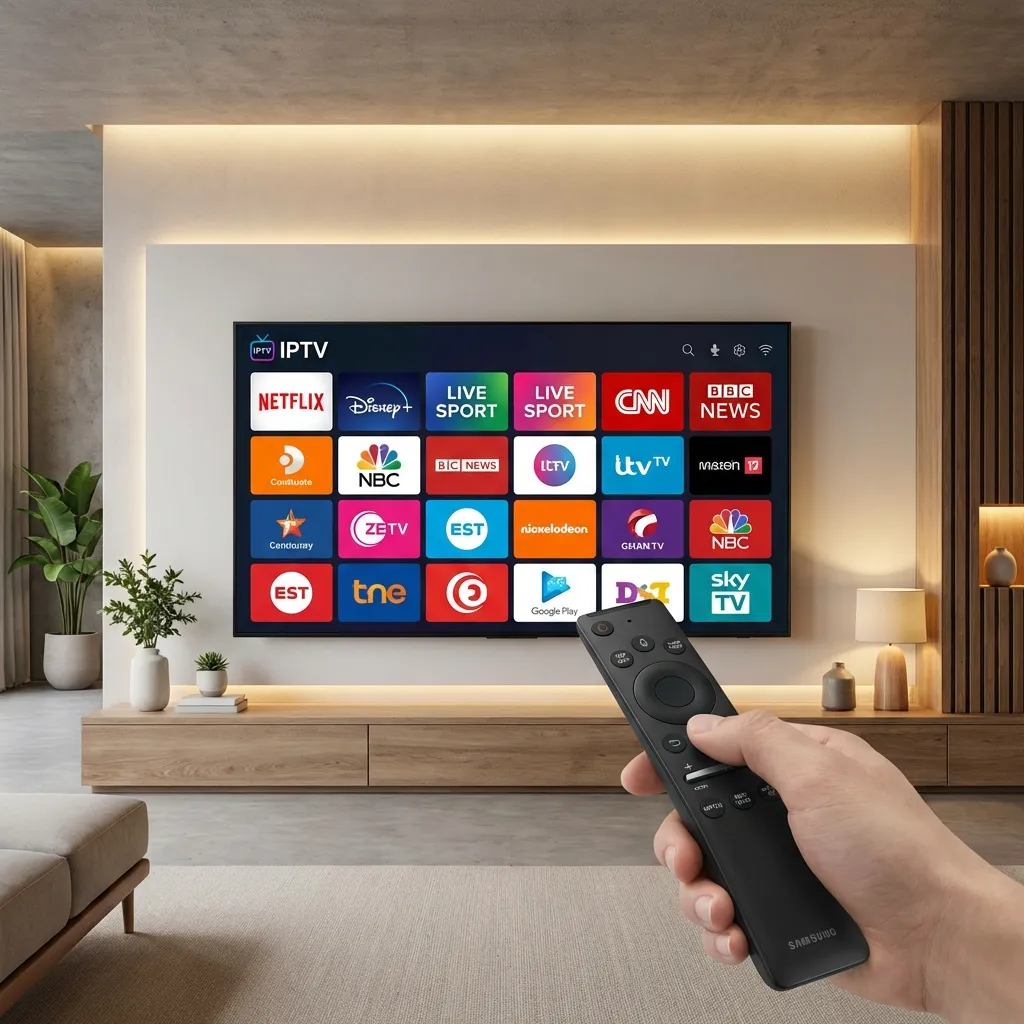
Why Samsung Smart TVs Are Perfect for IPTV
Samsung Smart TVs are among the most popular televisions worldwide, and for good reason. With their stunning displays, built-in WiFi, and the Tizen operating system, they provide an excellent platform for IPTV streaming. Whether you own the latest Samsung QLED, Neo QLED, or an older HD model, you can easily set up IPTV and enjoy 25,000+ live channels in crystal-clear quality.
Before You Start
- Active IPTV subscription — Get yours from Yourflix
- Samsung Smart TV (2017 or newer recommended for best performance)
- Stable internet connection — 25 Mbps minimum for HD, 50 Mbps for 4K
- Your IPTV credentials — M3U URL or Xtream Codes login (provided after purchase)
Method 1: Using Smart IPTV App (Recommended)
Step 1: Install Smart IPTV
On your Samsung Smart TV, open the Samsung App Store (also called Apps). Search for "Smart IPTV" or "IPTV Smarters". If the app isn't available in your region, you can sideload it using a USB drive.
Step 2: Note Your TV's MAC Address
Open the Smart IPTV app. On the first screen, you'll see your TV's MAC address — a unique
code like 00:1A:79:XX:XX:XX. Write this down, you'll need it for activation.
Step 3: Upload Your Playlist
On your computer or phone, go to siptv.eu/mylist. Enter your MAC address and your M3U playlist URL (provided by Yourflix after purchase). Click "Send" and wait for confirmation.
Step 4: Restart the App
Go back to your Samsung TV, close Smart IPTV completely, and reopen it. Your channels should now be loaded. Organize them by category — Sports, Entertainment, Movies, News — for easy browsing.
Method 2: Using IPTV Smarters Pro
Step 1: Download from App Store
Search for "IPTV Smarters Pro" in the Samsung App Store. This app has a modern interface and supports EPG (Electronic Program Guide) for channel schedules.
Step 2: Login with Xtream Codes
Select "Login with Xtream Codes API" and enter:
- Any Name: e.g., "Yourflix"
- Username: (provided by Yourflix)
- Password: (provided by Yourflix)
- Server URL: (provided by Yourflix)
Click "Add User" and wait for the channels to load. This typically takes 30–60 seconds.
Step 3: Enjoy Your Content
Navigate through Live TV, Movies, and Series sections. Use the built-in EPG to see what's on now and coming up next. Favorite your most-watched channels for quick access.
Method 3: Using a Web Browser (No App Required)
If your Samsung TV has a built-in web browser, you can access some IPTV services directly through a web portal. Simply open the browser, navigate to the portal URL provided by your IPTV provider, and log in with your credentials.
Optimizing Your Samsung TV for IPTV
- Use Ethernet: Connect your TV via Ethernet cable instead of WiFi for the most stable connection
- Close background apps: Other running apps can reduce performance
- Update firmware: Keep your Samsung TV's software up to date via Settings → Support → Software Update
- Adjust DNS: Set custom DNS (8.8.8.8 / 8.8.4.4) in network settings for faster channel loading
- Disable energy saving: Power-saving modes can limit network performance
Troubleshooting Samsung IPTV Issues
App Won't Install
Some Samsung TV regions restrict certain apps. Try changing your TV's region in Settings → General → System Manager → Change to US or UK. Alternatively, sideload the APK via USB.
Channels Not Loading
Verify your M3U URL or Xtream Codes credentials are correct. Check your internet speed with a speed test. Restart both the app and your TV. If the issue persists, contact our 24/7 support team.
Poor Video Quality
Ensure your internet speed exceeds 25 Mbps. Switch to a wired connection. In the IPTV app, select the HD or FHD stream instead of SD. Consider using a VPN if your ISP is throttling streaming traffic.
"My Samsung 65" QLED with Yourflix IPTV is the best entertainment setup I've ever had. Crystal clear 4K on sports channels — it's better than cable ever was." — Yourflix Customer
Final Thoughts
Setting up IPTV on your Samsung Smart TV is simple and takes just a few minutes. With 25,000+ live channels and 35,000+ on-demand movies and series, Yourflix transforms your Samsung TV into the ultimate entertainment hub.